
Pick the right icon style first
Before you start downloading, decide on the visual language of your game. A mismatched icon breaks the player's trust instantly. If your game is a whimsical platformer, a gritty, realistic icon feels out of place. If your game is a serious strategy title, a cartoonish icon suggests shallow gameplay. You are setting expectations before the player even clicks "Play."
Think of your icon as a visual contract. It tells the player what kind of experience they are about to have. A pixel art style signals retro charm and technical nostalgia. A flat, minimalist design suggests modern efficiency and clean UI. A hand-drawn aesthetic implies creativity and organic gameplay. Choose a style that matches your core mechanics and art direction.
Look at successful indie titles for reference. Notice how Hades uses a stylized, comic-book aesthetic that matches its mythological theme. Stardew Valley uses warm, pixelated graphics that promise a cozy farming simulation. These choices are intentional. They filter for the right audience. When you pick a style, you are also picking your audience.
Once you have defined your style, you can browse libraries with purpose. Instead of scrolling through thousands of generic icons, search for specific terms like "pixel art sword" or "vector shield." This narrows your results and saves time. You will find assets that fit your game's aesthetic immediately. Don't settle for the first icon you see. Make sure it aligns with your game's identity.
Search free icon repositories
Finding the right visual assets is the first step in building a cohesive indie game identity. You need sources that offer high-quality vector files, consistent style sets, and clear licensing terms. The following repositories are reliable starting points for most indie developers.
Game-icons.net
This site is a staple for pixel-art and vector icon lovers. It hosts over 4,000 icons that are free to use for any purpose, including commercial projects, without attribution. The icons are available in both SVG and PNG formats, making them easy to integrate into various engines. Because the entire set is designed by a single artist, the visual style remains consistent across all assets, which is crucial for maintaining a polished look in your game UI.
Flaticon
Flaticon offers a massive library of over 160,000 gaming-related icons. The variety is unmatched, with styles ranging from flat design to 3D renders. Most icons are available in SVG, PNG, and PSD formats. While many icons are free, they often require attribution to the author or Flaticon itself. Always check the specific license for each icon before downloading to ensure you are compliant with the terms, especially if you plan to sell your game.
Icons8
Icons8 provides games icons in over 50 different UI design styles, allowing you to match your icons to your game's specific aesthetic. You can download static and animated vector icons in PNG, SVG, and GIF formats. The platform allows you to customize colors and sizes before downloading, which saves time during the implementation phase. Like Flaticon, free users must provide attribution, while premium users can use the icons without it.
Evaluate premium asset packs
Buying premium icon packs saves time, but it also locks you into a specific visual style. For indie developers, consistency across the UI is more important than having a single "perfect" icon. Premium packs from platforms like CraftPix or DeviantArt offer cohesive sets where every button, coin, and health bar matches the same art direction.
Before purchasing, verify the commercial license. Some packs allow use in commercial games without attribution, while others require you to credit the artist or restrict resale. Always check if the license covers multiplayer or monetized projects. If you plan to update your game frequently, look for packs that offer future updates or expansion packs at a discount.
Compare pack options
Use this comparison to weigh the trade-offs between free community packs and curated premium bundles.
| Source | Style Consistency | Commercial Rights | Cost |
|---|---|---|---|
| Premium Bundle | High (cohesive set) | Usually full commercial | $10-$50 |
| Free Community Pack | Variable | Check individually | Free |
| Individual Assets | Low (mixed styles) | Varies by artist | Pay per item |
Select the right pack
- Check the preview images: Zoom in on the thumbnails. Are the lines clean? Do the colors match your game’s palette? If the preview looks pixelated, the source files will likely be too.
- Verify file formats: Ensure the pack includes SVG or PNG with transparent backgrounds. Vector formats (SVG) allow you to scale icons for different resolutions without losing quality.
- Read the license terms: Confirm you can use the assets in a commercial product. Some "free" packs require attribution in the credits screen, which can clutter your UI.
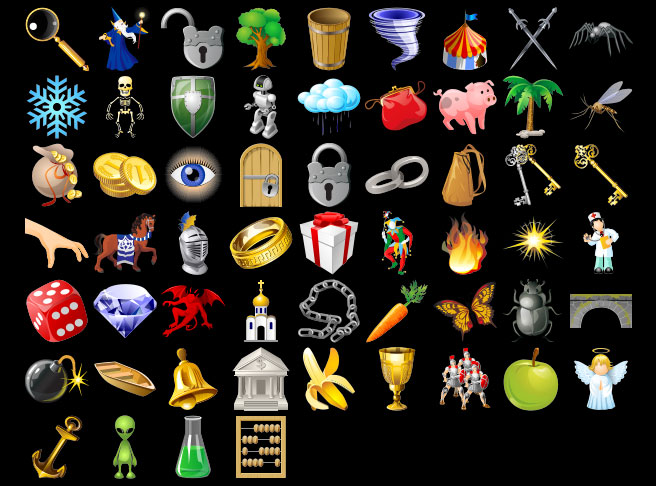
Open the preview gallery. Scroll through all icons in the pack. Ensure every category you need (buttons, inventory, HUD) is included. If you have to buy separate packs for basic UI elements, the initial price may not be worth it.
Download the master files (PSD, AI, or SVG). Do not rely on the preview PNGs for development. You need the editable source files to change colors, adjust sizes, or remove elements that don’t fit your game’s specific needs.
Import a few key icons into your game engine. Check how they look at different resolutions. If an icon looks blurry on a high-DPI screen, the source file may not be vector-based, and you should request a refund or choose a different pack.


As an Amazon Associate, we may earn from qualifying purchases.
Check licensing before you use
Download Game Icons for Indie Games works best as a clear sequence: define the constraint, compare the realistic options, test the tradeoff, and choose the path with the fewest hidden costs. That order keeps the advice usable instead of decorative. After each step, pause long enough to check whether the recommendation still fits the reader's actual situation. If it depends on perfect timing, unusual access, or a best-case budget, include a simpler fallback.
The simplest way to use this section is to write down the real constraint first, compare each option against it, and choose the path that still works outside ideal conditions.
Organize Your Game Icon Downloads
A messy asset folder slows down development. Treat your icon library like a source code repository: version control matters, and consistency prevents bugs. Whether you pull free assets from Game-icons.net or premium packs from CraftPix, a strict naming convention saves hours of debugging later.
Set up a root folder named assets/icons inside your project directory. Subdivide this into categories that match your game’s logic: ui, items, characters, and effects. This separation keeps the editor clean and helps artists find files without scrolling through hundreds of unrelated graphics.
Avoid generic names like icon1.png. Use a format that describes the asset’s function and state, such as btn_play_normal.png or heart_full.png. Including the size in the filename (e.g., _64x64) is helpful if you export multiple resolutions for different screen densities.
Keep your vector source files (SVG or AI) in a separate source subfolder. Always export final game-ready assets as PNG or WebP. Storing both formats ensures you can tweak the design later without re-drawing, while the game engine loads only the optimized raster version.
Create a LICENSES.txt file in your assets folder. List every third-party icon, its author, and the required attribution text. This prevents legal issues if you release your indie game on Steam or the App Store, where compliance checks are strict.
Checklist
-
Icons are sorted by category (UI, Items, Characters)
-
Filenames follow the type_state_size.png format
-
Source vector files are backed up in a source folder
-
Attribution requirements are logged in LICENSES.txt
-
All icons are exported to the required resolution (e.g., 64x64, 128x128)
Common mistakes when downloading game icons
Downloading free assets is fast, but skipping verification steps often breaks your game’s visual consistency. Indie developers frequently encounter three specific pitfalls that delay production or degrade the final look. Treat your download phase as a quality control checkpoint, not just a file transfer.
Resolution and scaling issues
Many libraries offer low-resolution PNGs by default to keep file sizes small. If you download a 64x64 pixel icon for a high-DPI display, it will appear blurry or pixelated when scaled up. Always check the available resolution options before hitting download. If the library only provides low-res files, look for vector sources like SVG instead. Vector icons scale infinitely without losing sharpness, making them the safest choice for responsive indie games.
Format incompatibility
Not all engines or tools support every file type. You might download an EPS or AI file, only to find your game engine cannot import it directly. This forces you to open heavy design software just to convert the file. Stick to universally supported formats like PNG for raster graphics and SVG for vectors. Verify your engine’s documentation for supported asset types before downloading to avoid unnecessary conversion steps.
Inconsistent art styles
Mixing icons from different libraries often results in a disjointed user interface. One pack might use flat design with sharp corners, while another uses skeuomorphic gradients with shadows. These clashes distract players and signal a lack of polish. Download all icons for a specific UI section from a single source or creator. If you must mix sources, use a post-processing filter to unify colors and stroke widths before implementing them in your game.
No comments yet. Be the first to share your thoughts!