
Pick the right icon style first
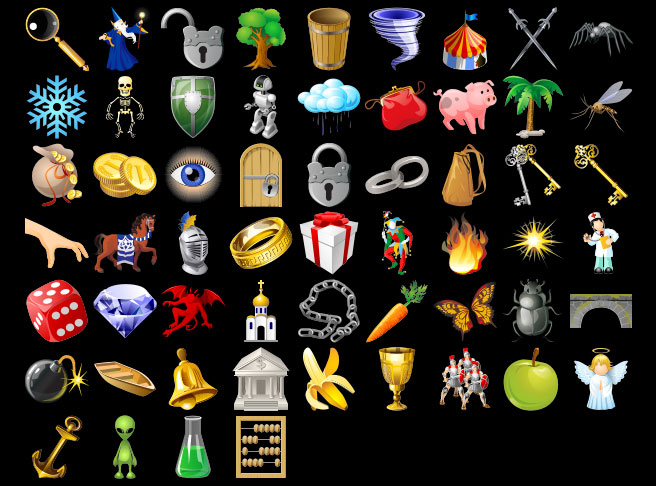
Before you start downloading assets, define the visual language of your game. Game icons serve as the visual shorthand for your mechanics, so they need to match your project’s aesthetic immediately. A pixel-art RPG looks out of place with sleek, modern 3D icons, just as a minimalist puzzle game suffers from overly detailed fantasy symbols. Choosing a style early prevents the "asset soup" effect, where your UI feels like a collage of unrelated parts.
Think of your icon set as a uniform. It doesn’t matter if the characters are knights or astronauts; they need to wear the same fabric. If you are building a cozy farming sim, look for soft, rounded, hand-drawn icons. If you are making a gritty survival game, lean toward distressed, monochrome, or high-contrast vector styles. Consistency builds trust with your players and makes your interface feel professional, even if you are a solo developer.
Start by creating a small mood board or sketching three distinct directions. Test these styles with a few core icons—like a sword, a potion, and a map—before committing to a full pack. This small investment saves hours of redesign later. Once you have a clear direction, you can browse resources with confidence, knowing exactly what fits your game’s identity.
Search free icon repositories
You don’t need to design every asset from scratch. Reputable repositories offer thousands of pre-made game icons that are ready to download and use in your indie project. The goal here is to find high-quality assets that match your game’s visual style while respecting licensing terms.
Start with Game-icons.net, a community-driven library dedicated specifically to game assets. It offers over 4,000 icons in a consistent, clean style. Everything is free to use under a Creative Commons 3.0 license, which means you just need to provide attribution. It’s an excellent starting point if you want a cohesive look without hunting for mismatched styles.
For broader variety, check out Flaticon and Icons8. These platforms host massive collections of gaming symbols, from controllers to fantasy weapons. They offer icons in multiple formats like SVG and PNG. Be careful to filter by "free" or check the specific license for each icon, as some premium designs require a paid subscription or strict attribution rules.
When browsing, always verify the file format. SVG files are preferred for scalability, allowing you to resize icons without losing quality. PNGs are useful if you need transparent backgrounds immediately. Avoid downloading icons from random blogs or unverified forums; stick to established repositories to ensure legal safety and file integrity.
Evaluate premium sprite packs
Paid asset bundles often save more time than they cost. When you buy a complete sprite pack, you get a unified visual language. The icons share the same style, lighting, and resolution, which keeps your game looking polished without constant manual tweaking. This consistency is hard to replicate when stitching together free assets from different artists.
Beyond aesthetics, commercial rights are the main driver for purchasing. Free resources often carry restrictive licenses that limit monetization or require attribution that doesn't fit your brand. Premium packs usually include a straightforward commercial license, letting you use the icons in your final product without legal headaches or ongoing royalty payments.
Check for completeness
A good pack covers every UI element you need. Look for bundles that include health bars, inventory slots, buttons, and currency icons. If you have to buy separate packs for each category, the cost and effort add up quickly. A comprehensive set ensures your interface feels cohesive from the start.
Verify licensing terms
Read the license agreement before downloading. Most premium packs allow unlimited use in commercial projects, but some restrict the number of copies or require attribution. Ensure the license covers your specific platform (mobile, PC, console) and distribution method. Clear rights mean you can focus on development rather than legal compliance.
Compare style and resolution
Preview the assets at actual size. Low-resolution icons look pixelated on modern high-DPI screens. Check if the pack includes multiple resolutions or vector sources. A consistent art style—whether pixel art, hand-drawn, or flat design—helps your game stand out. Avoid packs with mismatched styles that can make your UI feel disjointed.
| Feature | Free Assets | Premium Packs |
|---|---|---|
| Consistency | Varies by artist | |
| Consistency | Unified style | |
| Licensing | Often restrictive | |
| Licensing | Commercial-friendly | |
| Completeness | Fragmented | |
| Completeness | Full UI sets | |
| Support | Community only | |
| Support | Direct from creator |


As an Amazon Associate, we may earn from qualifying purchases.
Check licensing before you download
Before you add a single pixel to your project, you need to know exactly what you are allowed to do with it. Using game icons in a commercial product without proper rights is one of the fastest ways to get your indie game pulled from storefronts. The difference between a free asset and a premium one often comes down to legal clarity, not just visual quality.
Most free resources operate under Creative Commons licenses. The most common is CC BY, which requires you to give credit to the original artist. If you are using a site like Game-icons.net or Flaticon, you will likely see a license link next to each download. Always click it. Some free icons are marked as "Free for personal use only," which means you cannot use them in a game you plan to sell.
Premium assets usually come with a standard commercial license. This license typically grants you the right to use the icons in your game, merchandise, and marketing materials without needing to attribute the creator. However, premium does not always mean unlimited. Some licenses restrict the number of copies or prohibit reselling the icon as a standalone asset.
To stay safe, keep a simple spreadsheet of your assets. List the icon name, the source URL, the license type, and any attribution text required. This documentation protects you if a publisher or platform asks for proof of rights later. It also helps you avoid accidentally mixing free and premium assets with conflicting terms.
Verify LicenseWhen in doubt, contact the creator or choose a simpler license. It is better to spend an extra hour verifying rights than to face a legal dispute after launch.
Organize your asset library
A scattered folder of downloaded PNGs and SVGs is a fast track to project chaos. You don’t need expensive software to keep your indie game assets tidy; you just need a consistent naming convention and a clear folder structure. Treat your library like a well-organized workshop where every tool has a designated spot.
Group icons by function rather than source. Create main folders for UI elements, character sprites, and environmental props. Inside each, use subfolders for specific states (e.g., buttons/hover, buttons/pressed). This prevents you from digging through hundreds of files to find that one specific "pause" icon.
Adopt a naming scheme that includes the asset type, state, and size. For example, btn_play_default_64.png is far easier to locate than icon_final_v2_new.png. Consistency here saves hours of debugging when your code tries to load the wrong sprite.
Keep a simple LICENSES.md file in your root directory. List the source URL and license type for every free or premium asset you use. This protects you legally and makes it easy to credit creators if required by CC-BY or other licenses.
Before adding a new icon to your project, verify its resolution, format, and license. A quick mental or physical checklist ensures you don’t import low-res assets that look pixelated on high-DPI screens.
-
Group icons by function (UI, Sprites, Props)
-
Use descriptive filenames (e.g., btn_play_default_64.png)
-
Document all licenses in a central file
-
Verify resolution and format before importing
By taking these steps, you build a library that grows with your game rather than becoming a bottleneck. Your future self will thank you when you need to swap out a single icon without breaking the entire interface.
Common questions about game assets
You’ve found a style you love, but before you drop it into your engine, you need to make sure you’re legally safe and technically ready. Licensing and file formats are the two biggest hurdles for indie developers, and getting them wrong can lead to takedowns or visual glitches.
Here are the practical answers to the questions we get most often.
Taking a few minutes to verify these details now saves you from legal headaches later. Stick to reputable sources, keep your license receipts organized, and your game will look professional without the legal risk.
No comments yet. Be the first to share your thoughts!