

Pick the right icon style first
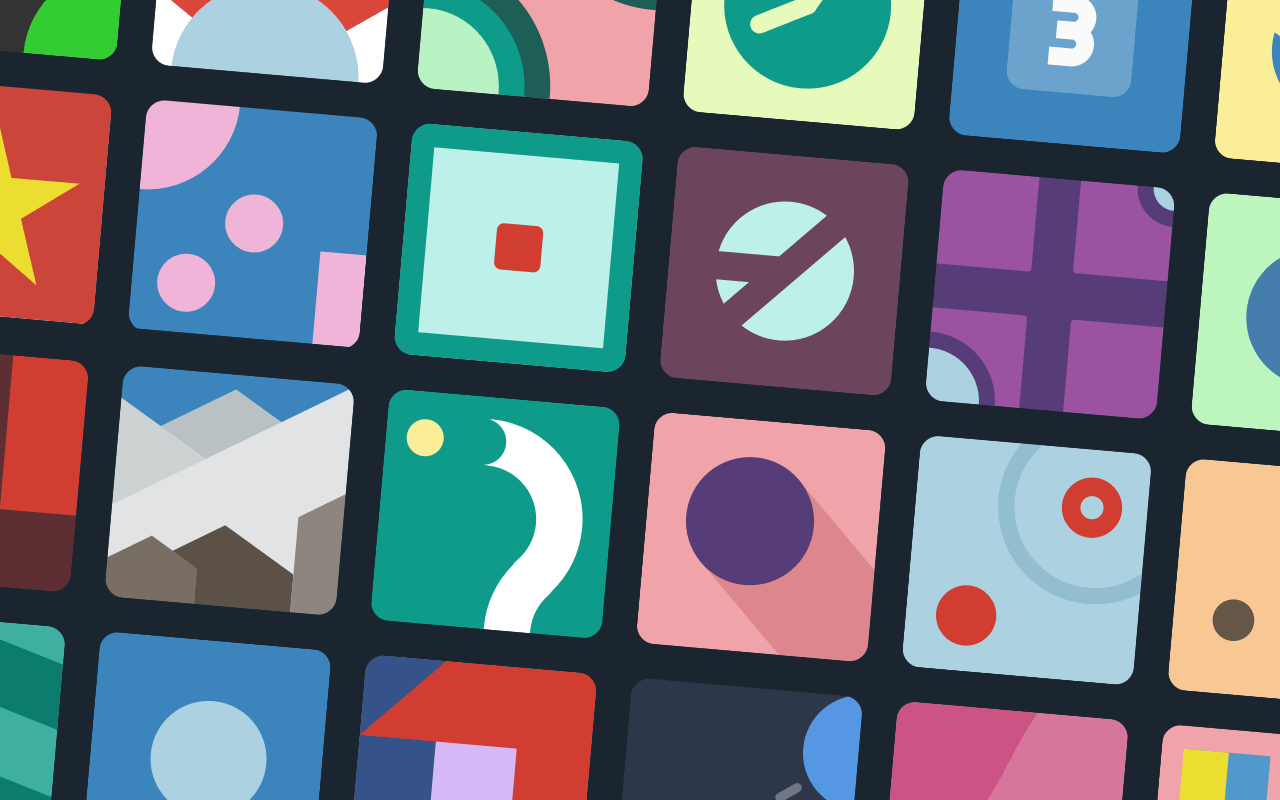
Before you start hunting for a game icon download, decide on the visual language of your project. Your icon is the visual handshake between the player and your game world. If the style clashes with your actual gameplay, it creates a disconnect that can confuse your audience.
Think of your icon as a thumbnail for your entire experience. A cozy farming simulator needs soft edges and warm colors, while a gritty sci-fi shooter demands sharp angles and high contrast. Matching this aesthetic ensures players know exactly what kind of experience they are clicking on.
Here are the most common styles to consider:
- Pixel Art: Perfect for retro-inspired games. It communicates nostalgia and charm, appealing directly to fans of classic 8-bit or 16-bit eras.
- Flat Vector: Clean, modern, and scalable. This style works well for casual mobile games or minimalist puzzle titles where clarity is key.
- Realistic/3D: Best for immersive RPGs or strategy games. It signals high production value and detailed worlds, setting expectations for graphics quality.
- Hand-Drawn/Sketchy: Ideal for narrative-driven or indie artistic games. It suggests personality, warmth, and a unique, human touch.
Take a moment to look at successful indie titles in your genre. Note how their icons reflect their core mechanics and art direction. This simple step saves hours of rework later, ensuring your icon download fits seamlessly into your project’s identity.
Scan free icon libraries for basics
Finding the right game icon download doesn't have to mean breaking the bank. Before you spend time drawing custom assets from scratch, check established libraries that specialize in game-ready graphics. These platforms offer thousands of vector and raster files that fit standard UI needs like buttons, menus, health bars, and inventory slots.
The goal here is speed and consistency. Most of these libraries maintain a cohesive visual style within each set, meaning you can mix and match elements without your interface looking disjointed. You are looking for assets that are clean, scalable, and ready to be dropped into your engine.
Here are three reliable sources to start your search:
Top Free Icon Resources
-

Game-Icons.net
A curated collection of over 4,000 free SVG and PNG icons. The style is distinctively pixel-perfect and vector-based, making it ideal for indie games that want a clean, retro-modern look. All assets are open-source and require no attribution for most uses. -

Flaticon Gaming Category
One of the largest databases with over 160,000 gaming icons. While many are premium, the free section is vast and offers multiple styles from flat to 3D. You can download in SVG, PNG, and PSD formats, though attribution is usually required for free accounts. -

Icons8 Games Set
Offers games icons in over 50 different UI design styles. This is useful if you need to match a specific aesthetic, such as "Neon" or "Sketch." They provide static and animated icons in PNG and SVG, ensuring you can find something that matches your game’s unique vibe.
When downloading, always check the license agreement. Some sites require you to credit the artist in your game’s credits screen, while others allow full commercial use without attribution. For most indie projects, sticking to open-source or clearly labeled free resources is the safest path to avoid legal headaches later.
Choose a character sprite pack for heroes
When you are building your indie game, sourcing individual character icons one by one is a recipe for visual chaos. A unified character sprite pack acts like a single artist’s hand across the entire project. This consistency is what separates a polished prototype from a scattered collection of assets. By downloading a complete set, you ensure that lighting, line weight, and style match perfectly, saving you hours of tweaking later.
The choice often comes down to budget versus control. Free packs offer a quick start for prototyping, but they come with the risk of other developers using the exact same assets. Premium packs provide unique, high-fidelity graphics and clearer licensing terms, which is critical if you plan to monetize your game. Below is a comparison to help you decide which route fits your current stage.
| Feature | Free Pack | Premium Pack |
|---|---|---|
| Cost | $0 | $10-$50+ |
| Visual Consistency | Variable | High |
| Exclusivity | Low | High |
| Licensing | Often CC-BY | Royalty-Free |
Look for packs that offer multiple resolutions. A good hero sprite should look crisp at 16x16 pixels for retro styles, but also scale up cleanly to 64x64 or higher for modern interfaces. Check the file format; PNGs with transparency are standard, but some packs now offer vector-based SVGs that allow you to resize without losing quality. This flexibility is invaluable when you need to adapt your game icon download for different platforms, from Steam to mobile stores.
Start with a free pack to test your game’s core loop. If the visual style resonates with players and you plan to publish, consider upgrading to a premium pack later to replace the generic assets. This hybrid approach lets you validate your idea without upfront costs while keeping the door open for a professional polish down the line.
Check licensing before you download
Finding the best game icon download for your indie project works best as a clear sequence: define the constraint, compare the realistic options, test the tradeoff, and choose the path with the fewest hidden costs. That order keeps the advice usable instead of decorative.
After each step, pause long enough to check whether the recommendation still fits the reader's actual situation. If it depends on perfect timing, unusual access, or a best-case budget, include a simpler fallback.
The simplest way to use this section is to write down the real constraint first, compare each option against it, and choose the path that still works outside ideal conditions.
Integrate icons into your game UI
Bringing your game icon download into the engine is where the visual identity starts to take shape. Whether you are working in Unity, Godot, or Unreal, the process is generally straightforward but requires attention to resolution and format to keep your interface crisp. Think of this stage as laying the foundation for your HUD; if the base assets are messy, the final polish will struggle to hold together.
1. Import and organize your assets
Start by dragging your downloaded files directly into your engine’s project folder or asset database. It is best to create a dedicated subfolder named UI_Icons or Sprites to keep your project structure clean. This prevents your root directory from becoming cluttered with hundreds of individual PNGs and SVGs that you might need to tweak later.
2. Adjust import settings for clarity
Once the files are in the editor, select them and check the import settings. For pixel-art styles, ensure the filter mode is set to Point (no filter) to maintain sharp, blocky edges. For smooth, vector-derived icons, Bilinear or Trilinear filtering usually looks better. You may also need to adjust the Pixels Per Unit (in Unity) or the texture scale to ensure the icons appear at the correct size relative to other UI elements.
3. Place icons in UI containers
Use your engine’s UI system—such as Unity’s Canvas or Godot’s Control nodes—to place the icons. Drag the sprite from the project window into a UI Image or Button component. If you are building a toolbar or inventory grid, consider using a Grid Layout Group to automatically position the icons evenly. This saves manual positioning time and ensures alignment remains consistent if you add or remove items later.
4. Test scaling and responsiveness
Game UIs must adapt to different screen sizes and resolutions. Test your icons by resizing the game window or using the engine’s device simulator. Ensure that the icons do not become blurry or pixelated when scaled up for high-DPI displays. If an icon looks too small on a mobile screen, you may need to increase the canvas scale or create a higher-resolution version of your game icon download specifically for larger viewports.
Top tools for indie developers
Finding the right game icon download resources doesn’t have to break the bank or require advanced design skills. Several platforms offer high-quality assets that fit seamlessly into indie projects, whether you’re building a pixel-art RPG or a modern mobile puzzle game.
Game-icons.net
This community-driven library is a goldmine for developers who need clear, readable icons. With over 4,000 free SVG and PNG files, it focuses on functional clarity rather than flashy effects. The icons are consistent in style, making them perfect for UI elements like health bars, inventory slots, or menu buttons. You can download the entire collection as a zip file or grab individual assets.
Flaticon
If you need variety, Flaticon offers a massive database of gaming symbols. You can filter by style—flat, colorful, or outlined—to match your game’s aesthetic. While many icons are free with attribution, premium options are available for those who want unique designs without the credit line. The vector formats ensure your icons stay sharp on any screen size.
CraftPix
CraftPix specializes in cohesive packs, which is ideal if you want a unified look across your game. Their free section includes themed sets for fantasy, sci-fi, and casual games. Downloading a full pack ensures your icons share the same color palette and artistic direction, saving you hours of tweaking.
As an Amazon Associate, we may earn from qualifying purchases.
Final checklist for your game icon download
Before you commit to a game icon download or sprite pack, run through this quick verification list. It takes less than a minute but saves hours of rework later. Think of this as your final quality gate between finding assets and integrating them into your build.
- Format compatibility: Ensure the files are in a format your engine supports, such as PNG for raster or SVG for vector.
- Resolution clarity: Check that the icon scales crisply at your target sizes (e.g., 16x16, 64x64, 256x256).
- License permission: Confirm the license allows commercial use and modification if you plan to adapt the style.
- Visual consistency: Verify the icon matches your game’s art style, whether that’s pixel art, flat vector, or hand-drawn.
<Checklist items={["Verify format (SVG/PNG)", "Check resolution clarity", "Confirm license permission", "Ensure visual consistency"]} />
This simple routine ensures your game icon download is ready for production. It helps maintain a professional look and keeps your project on schedule.
Common questions about game icon download
Finding the right assets shouldn't slow down your development cycle. Here are the most frequent questions indie developers ask when looking for a game icon download.
Can I use free game icons in a commercial project?
Always check the specific license for each icon pack. Many sites offer icons under Creative Commons licenses that require attribution, meaning you must credit the artist in your game's credits or about screen. Other resources provide icons under royalty-free licenses that allow commercial use without attribution. Sites like Game-Icons.net offer extensive libraries specifically designed for free commercial use, making them a safe starting point for indie projects. Always read the fine print before publishing.
Should I choose SVG or PNG for my game icons?
The best format depends on your game engine and art style. SVG (Scalable Vector Graphics) is ideal for 2D UI elements, menus, and web-based games because it scales infinitely without losing quality. If your game uses pixel art or complex raster effects, PNG is the standard choice. PNG supports transparency, which is essential for overlaying icons on different backgrounds. Some platforms, like Flaticon, offer both formats, allowing you to download the version that best fits your technical needs.
Is it okay to modify free game icons?
Yes, modifying icons is a common practice to ensure they match your game's unique aesthetic. Most licenses permit editing the color, shape, or size of the asset. However, you generally cannot resell the icon as a standalone asset or claim it as your own original creation. If you significantly alter an icon, it becomes a derivative work, which is usually allowed under commercial licenses. This flexibility allows you to maintain a consistent visual language across your entire project.
Put Indie Game Icon Trends into practice
No comments yet. Be the first to share your thoughts!