
Pick the right icon style first
Choose and Download Game Icons for Indie Games works best as a clear sequence: define the constraint, compare the realistic options, test the tradeoff, and choose the path with the fewest hidden costs. That order keeps the advice usable instead of decorative. After each step, pause long enough to check whether the recommendation still fits the reader's actual situation. If it depends on perfect timing, unusual access, or a best-case budget, include a simpler fallback.
The simplest way to use this section is to write down the real constraint first, compare each option against it, and choose the path that still works outside ideal conditions.
Compare free and premium sources
Choosing between free community assets and paid premium packs comes down to two factors: your budget and your need for a cohesive art style. Free resources are excellent for prototyping or small-scale projects, while premium packs offer consistency that helps your game look polished from day one.
The table below breaks down the main differences you’ll encounter when sourcing game icons.
| Source Type | Price | Common Formats | License Terms |
|---|---|---|---|
| Community Repositories (e.g., Game-Icons.net) | Free | SVG, PNG | Creative Commons (Attribution required) |
| Marketplace Packs (e.g., CraftPix, Flaticon) | $5–$50 per pack or subscription | PNG, SVG, PSD, EPS | Royalty-free (Check specific EULA) |
| Asset Stores (Unity, Unreal) | Variable (Free to Premium) | PNG, Sprite Sheets | Standard Store License |
Free community assets
Sites like Game-Icons.net provide thousands of vector icons that are completely free to use. The primary advantage here is cost; you can download high-quality SVGs without spending a dime. However, these assets are often created by different artists, which can lead to a mixed visual style if you don’t curate them carefully.
Most free icons require attribution, meaning you must credit the artist in your game’s credits or documentation. Always double-check the specific license for each icon, as some may restrict commercial use.
Premium icon packs
Premium packs from marketplaces like CraftPix or Flaticon offer consistency. When you buy a pack, you’re paying for a unified art style—every icon shares the same line weight, color palette, and aesthetic. This is crucial for maintaining a professional look in your UI.
Premium licenses typically allow for broader commercial use without mandatory attribution, though you should still read the End User License Agreement (EULA). These packs often include source files (like PSD or AI), allowing you to tweak colors or shapes to better fit your game’s specific needs.
Download and prepare your assets
Getting the right game icons is the final bridge between concept and code. This section covers the technical steps for downloading, extracting, and optimizing your assets so they are ready for your game engine or web project.
1. Choose the right file format
Before downloading, decide on the format that best suits your engine. For most 2D indie games, PNG is the standard choice because it supports transparency without losing quality. If your project requires crisp scaling at any resolution, such as in a web-based game or a high-DPI interface, SVG is the better option. Avoid JPEG for icons; the compression artifacts will make your edges look blurry and unprofessional.
2. Download and extract your files
Most icon packs come compressed in a .zip or .tar.gz file. Downloading these files is straightforward, but you must extract them to access the individual assets. On Windows, right-click the archive and select "Extract All." On macOS, double-clicking the file automatically unpacks it into a folder. Keep your folder structure organized by style or theme (e.g., icons/rpg, icons/ui) to keep your project directory clean.
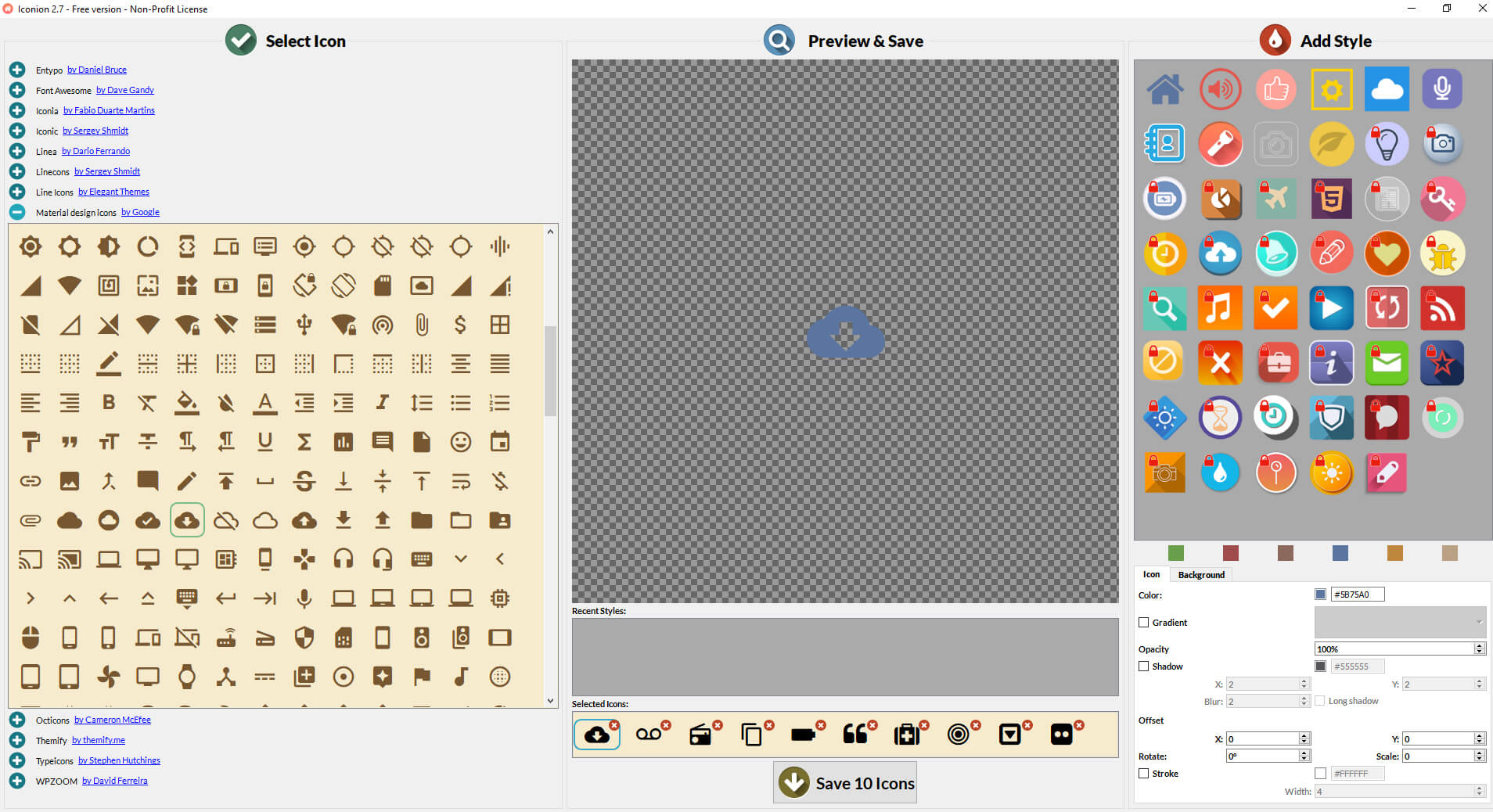
Browse your chosen repository, such as Icons8 or Vecteezy, and filter by your preferred style. Click the download button for the specific icon set you need. Most sites will prompt you to save a compressed archive to your local drive.

Unzip the downloaded file into a dedicated folder within your project’s assets directory. This keeps your source files separate from your working copies, preventing accidental overwrites.
Open a few icons to ensure they rendered correctly. Check that transparency is intact and that no watermarks are present. If you downloaded SVGs, open them in a vector editor like Inkscape to verify the layers are editable.
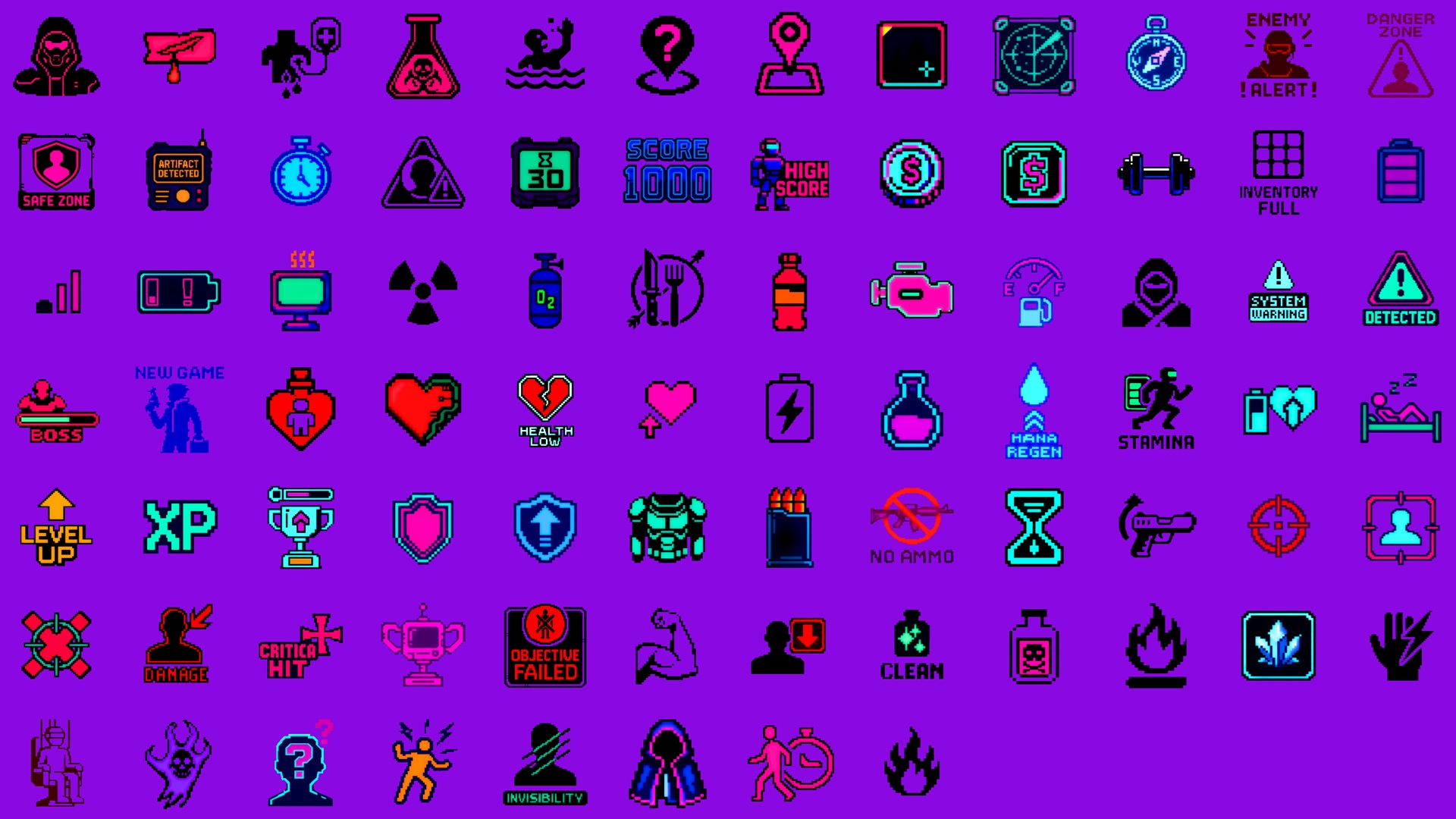
Group your icons by function (e.g., combat, inventory, UI) or by size. Create subfolders like 16x16, 32x32, and 64x64 if the pack includes multiple resolutions. This makes it much faster to drag and drop assets into your engine later.
3. Optimize for performance
Raw downloads are often larger than necessary for a game. Use a tool like ImageOptim (for PNGs) or SVGO (for SVGs) to strip unnecessary metadata and reduce file size without visible quality loss. Smaller icons mean faster load times and less memory usage, which is critical for mobile games or web projects where bandwidth matters.
Quick Checklist for Asset Prep
-
Selected PNG for raster or SVG for vector needs
-
Extracted archive to a clean project folder
-
Verified transparency and lack of watermarks
-
Organized icons by function or resolution
-
Optimized file sizes with compression tools
Check licensing before you use
Choose and Download Game Icons for Indie Games works best as a clear sequence: define the constraint, compare the realistic options, test the tradeoff, and choose the path with the fewest hidden costs. That order keeps the advice usable instead of decorative. After each step, pause long enough to check whether the recommendation still fits the reader's actual situation. If it depends on perfect timing, unusual access, or a best-case budget, include a simpler fallback.
The simplest way to use this section is to write down the real constraint first, compare each option against it, and choose the path that still works outside ideal conditions.
Top picks for indie developers
You don’t need a massive budget to get polished game icons. Several reliable sources offer assets that look professional without draining your resources. Start with Game-icons.net, a community-driven library offering thousands of free, open-source SVG and PNG icons. The style is consistent and clean, making it easy to maintain a cohesive look across your UI. For broader variety, Flaticon hosts a massive database of gaming symbols, though you’ll need to check licensing for commercial use. If you prefer curated collections, Craftpix offers both free and premium packs tailored to specific genres like RPGs or platformers.
Choosing the right tool matters as much as the assets themselves. Use Figma or Inkscape to tweak colors and sizes so your icons fit your game’s specific art direction. These free tools let you export icons in multiple resolutions, ensuring they look sharp on both mobile screens and desktop monitors. By combining open-source libraries with simple editing software, you can create a polished icon set that elevates your game’s presentation.

As an Amazon Associate, we may earn from qualifying purchases.
No comments yet. Be the first to share your thoughts!